How to Set Up Google Business Profile Without a Storefront
Don't Feel Like Reading?
Here's what matters most:
- Set up as a Service-Area Business - hide your address, show your service areas only
- Your business name and address must match your EIN and LLC/DBA paperwork exactly - if anything is different, fix it before you start
- Have your proof ready before verifying - business documents, and any branding you have (vehicle, signage, apparel)
- Video verification - one continuous take, GPS on, no edits, no narration
- If denied, don't panic - you can resubmit, and after a couple of attempts Google may offer a live video call with a real person
Yes, it's a lot of information. But reading through this will help make sure you get the process done right and avoid the headache of a denial — or worse, a suspension. One wrong name, one mismatched address, and you're waiting weeks to fix it.
Who This Guide Is For
If you're a service-based business that goes to people, this is for you. Roofers, water damage restoration contractors, mold remediation companies, fire and smoke damage crews, foundation repair specialists, and anyone else whose business doesn't need a physical storefront. You go to the customer, not the other way around.
Google has a specific setup for businesses like yours called a Service-Area Business (SAB). It hides your home address, shows the areas you serve instead, and puts you on Google Maps and in local search results. Set it up right and customers find you. Set it up wrong and you get denied, suspended, or stay invisible.
Step 1: Storefront vs. Service-Area Business
Google splits businesses into two types:
- Storefront businesses - customers come to you. Restaurants, barbershops, retail stores. The address is public because people need to find the building.
- Service-Area Businesses (SABs) - you go to the customer. Your address stays hidden. Instead, Google shows the cities, zip codes, or regions you serve.
The #1 mistake service businesses make is setting up as a storefront and putting their home address on Google Maps for everyone to see. Don't do that.
Step 2: Set Up Your Profile (and Don't Put Your Home Address on Display)
Here's the step-by-step:
- Go to Google Business Profile Manager
- Click "Add your business" or "Manage now"
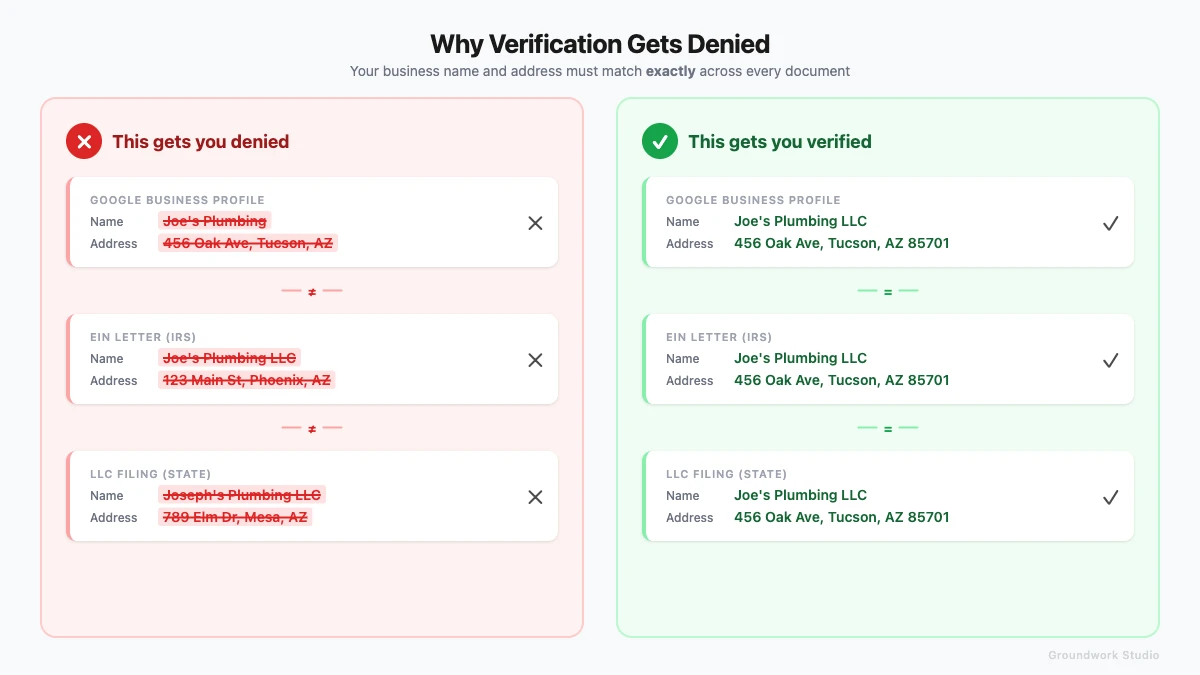
- Enter your business name - this must match your LLC or DBA exactly, and it must match your EIN letter too. If your LLC is "Joe's Plumbing LLC," don't enter "Joe's Plumbing." Character for character. This is one of the most common reasons for denial.
- Choose your primary business category (you can add more later)
- When asked "Do you want to add a location customers can visit?" — select No. This tells Google you're an SAB.
- Enter your service areas — up to 20 cities, zip codes, or regions. Stick to areas you actually serve (Google recommends within a 2-hour driving radius).
- Enter your contact info — phone number, website if you have one
Now here's the critical part:
⚠️ Before you enter your address: Your home address is fine — most service businesses use their home address and that's completely normal. But your business name and address must match exactly across your GBP listing, your EIN letter, and your LLC or DBA filing. If you've moved since you registered your business and never updated the paperwork, or if your business name is slightly different on any document, fix that first. The next section shows you how.
You'll still need to enter your real address. Google needs it for verification. But it will NOT be shown to the public. After setup, make sure "Show business address to customers" is turned off:
- Go to your profile → Edit profile → Location
- Next to "Business location," select Edit
- Toggle off "Show business address to customers"
- Save
Step 3: Get Your Paperwork in Order (Before You Verify)
In my experience — over six years of helping service businesses get set up on Google — this is the single biggest reason verifications fail. I've had to build a process around it because it happens so often: the first thing I ask every client is "what's on your EIN letter, and does it match your current address?" Because if it doesn't, we have to fix that before we do anything else.
The problem: You got your EIN three years ago at a different address. Or you filed your LLC under a slightly different name than what you entered on GBP. You moved, the paperwork never got updated, and now everything mismatches.
The rule is simple: These must all show the exact same business name and the exact same address:
- Your Google Business Profile listing
- Your EIN confirmation letter (IRS Letter 147C or CP 575)
- Your LLC/DBA filing with your state
- Your business license (if applicable)
If any of these are outdated, update them first:
Update your EIN address: File IRS Form 8822-B (Change of Address - Business). It's free. It takes 4-6 weeks by mail, but you can call the IRS Business & Specialty Tax Line at (800) 829-4933 to update faster over the phone.
Update your LLC or DBA: File an amendment with your state's Secretary of State or Corporation Commission. In Arizona, that's the Arizona Corporation Commission and you can do it online. Most states charge $10-50 for an amendment.
The matching has to be exact. "Joe's Plumbing LLC" vs. "Joe's Plumbing" (without "LLC") can trigger a denial. "123 Main St Suite 4" vs. "123 Main St Ste 4" can trigger a denial. Check everything character by character.
Do this before you start verification. It's just paperwork that most people forget about, but skipping it means a denial and starting over.
Note: We're sharing general steps here based on publicly available information. If you're unsure about updating your EIN or business filings, consult with a tax professional or your state's filing office directly.
Step 4: Gather Your Proof
Google is going to ask you to prove your business is real. Here's the good news: your documents are what matter most. If your paperwork is in order from Step 3, you're already in a strong position.
What you need (at least 2 from different categories):
- EIN confirmation letter from the IRS
- LLC/DBA certificate or Articles of Organization
- Business license - in Arizona, check the Arizona Registrar of Contractors for trade-specific licensing
- Utility bill at your business address showing your business name
- Business insurance documents
- Invoices or contracts with your business name and address
What about branded vehicles, signage, and apparel?
I want to be upfront here: I don't have a branded vehicle or branded apparel myself, and I've seen plenty of businesses get verified without any of that. These are not requirements. What Google cares about most is that your documents match and that you can show a real workspace where your business operates — a desk, computer, tools, equipment, whatever that looks like for you.
That said, if you do have branding — a vehicle wrap, magnetic signs, shirts with your logo, a sign on your door — it can only help. Include it in your video. But don't let the lack of it stop you or make you think you can't get verified. You absolutely can.
Step 5: Video Verification
This is what approximately 80% of new service businesses get assigned. Google decides your verification method - you don't get to choose. But video is the most common, so be ready for it.
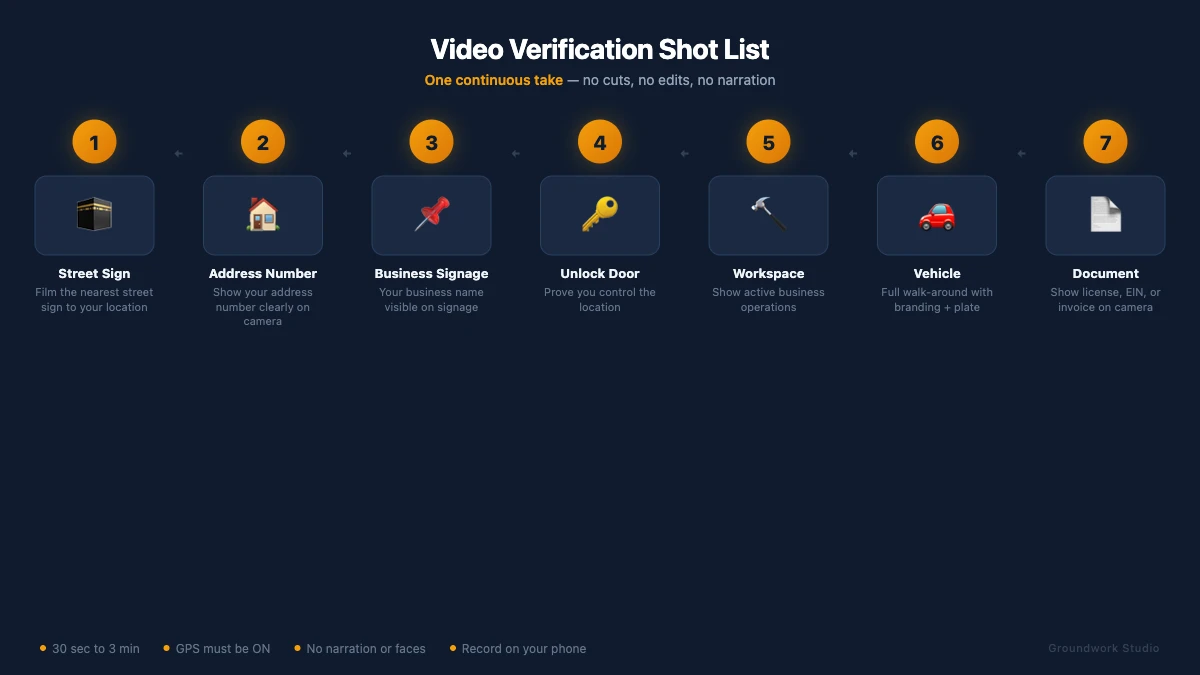
Here's exactly what to film, in order:
- Street signs and your address number - proves your GPS location matches what you entered
- Any signage with your business name - matching your GBP listing exactly
- Unlock the door or access the space - proves you control the location
- Your workspace - equipment, tools, office setup, anything that shows active operations
- Your branded vehicle (only if you have one) - walk-around showing branding and license plate
- A business document - briefly show your business license, EIN letter, or invoice on camera
The rules:
- 30 seconds to 3 minutes - don't rush, don't ramble
- One continuous take - no cuts, no transitions, no editing. Press record, walk through everything, press stop.
- GPS/location services must be ON on your phone - Google checks that your location matches the address
- No narration, no faces, no voices - just visual proof, silently
- Record on your phone - not a camera, not a screen recording
- Google added a preview feature in April 2025 so you can review your video before submitting
Review takes up to 5 business days. Google's AI handles the first pass. It checks for GPS data, signage, and proof of access. If the AI can't determine everything, a human reviewer looks at it.
Pro tip: Do a practice run first. Walk through the whole sequence without recording. Make sure you can get from your street sign to your workspace smoothly in under 3 minutes. Then record for real.
Step 6: If You Get Denied - Don't Panic
Video rejection rates are high. Even businesses that follow the guidelines see around a 50% denial rate. If it happens to you, it doesn't mean something is wrong with your business - it usually means something was wrong with the video.
After your first denial: Since November 2024, Google tells you the specific reason your verification failed. Read it carefully. Common reasons:
- Signage didn't match your business name exactly
- GPS wasn't enabled or didn't match the address
- The video was edited or had cuts
- Documents shown didn't match the business name or address
- The location didn't show enough evidence of an active business
Fix whatever was flagged. Re-record. Resubmit. There's no limit on attempts.
After 2-3 failed attempts - the live video call: After multiple failed video submissions, Google may offer you a live video call with a real Google agent. This is a much better experience:
- A real person joins a video call with you
- They tell you exactly what to show, in real-time
- You walk through your location while they watch and guide you
- The success rate is much higher because there's no guessing
A few things to know about the live video call:
- You can't request it on demand - Google makes it available in your dashboard after failed attempts
- Available weekdays, 9:30 AM - 12:30 PM Eastern
- The option expires after about 3 weeks - if you see it, use it
- If it's not showing up, try contacting Google Support through GBP Help (scroll to the bottom of that page for the contact option)
If video and live call both fail - formal appeal: Use Google's suspension and reinstatement tool. You'll have 60 minutes to upload supporting evidence. Have at least 2 documents from different categories ready.
This is where the process gets frustrating, and where having someone who does this regularly helps. If you're stuck in the denial loop, you don't have to fight it alone. Reach out to us and we can walk you through it or handle the resubmission for you.
What NOT to Do
Quick list of things that will get you denied or suspended:
- Don't use a P.O. box - Google explicitly prohibits this
- Don't use a virtual office or UPS Store mailbox - also prohibited, even as your hidden address
- Don't leave your home address visible to the public - set up as SAB and hide it
- Don't use a coworking space address unless you have a dedicated, private, staffed office with your own signage
- Don't put up temporary signage for the video - Google wants permanent, professional signage
- Don't edit the video - any cuts, transitions, filters, or splicing will get you denied immediately
- Don't enter a business name that doesn't match your legal paperwork - this includes your EIN letter, LLC filing, and business license
Helpful Links
Everything referenced in this guide, in one place:
Google Business Profile:
- Set up your Google Business Profile
- Manage your service areas
- Video verification guide
- All verification methods
- Fix a suspended profile
- Eligibility guidelines
- GBP community forum
Business Paperwork:
Bottom Line
Setting up Google Business Profile as a service business isn't complicated. It just has specific steps that most people don't know about.
Get your name and address matching across all your documents. Set up as a Service-Area Business. Hide your address. Film one clean video. If it doesn't work the first time, fix what they flagged and try again.
Most service businesses get through this in a week or two. If you follow these steps, you can absolutely do this yourself. And if it gets complicated or you just don't have time, that's what we're here for.